On iPad, Aprox shows the sidebar and the detail side by side, so you can move between nodes and guests without losing your place. It works with Split View, Slide Over and Stage Manager, with a trackpad or mouse, and with a hardware keyboard. Everything the iPhone app does works on iPad too.
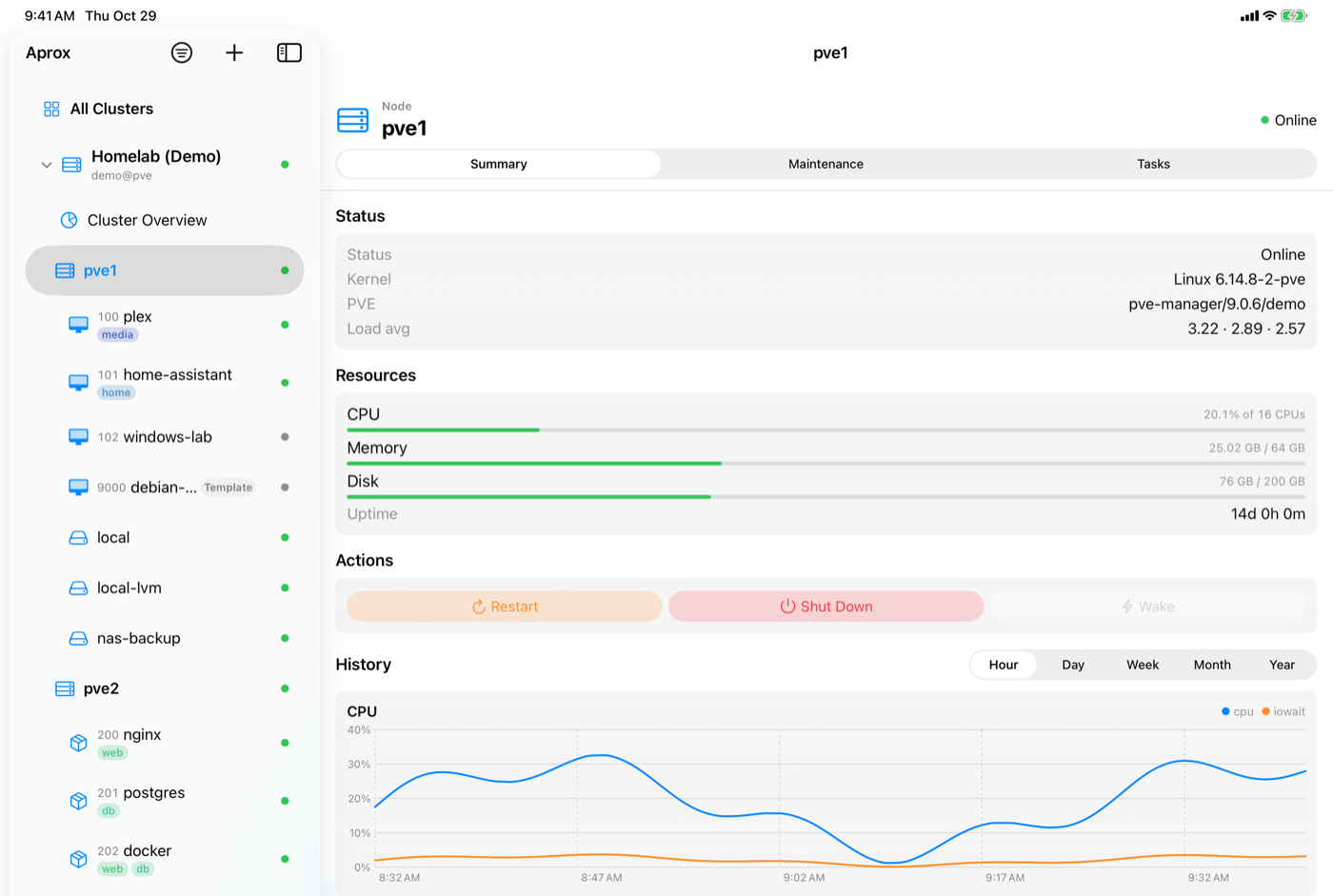
Where to find it
There is nothing to switch on. Aprox adapts to the iPad by itself:
- Landscape: the sidebar stays beside the detail instead of covering it.
- Portrait or a narrow window: the layout adapts to the space you give it.
- Settings: Sidebar › Settings, the same as on iPhone.
Work side by side with other apps
Aprox runs in every iPad multitasking mode:
- Open Aprox together with another app in Split View, as a Slide Over window, or as a window in Stage Manager.
- Resize the window as you like. When the window is wide, sidebar and detail sit side by side. When it is narrow, Aprox behaves like on iPhone: the sidebar is the start screen, and tapping a row opens the detail.
For example, keep the Proxmox documentation open in Safari next to the Hardware tab of windows-lab.
Use a trackpad or mouse
- Rows in the sidebar and cards on the dashboards highlight when the pointer moves over them.
- Click a row to open it.
- Secondary-click (two-finger click on a trackpad) or touch and hold a row to open its context menu.
Use context menus
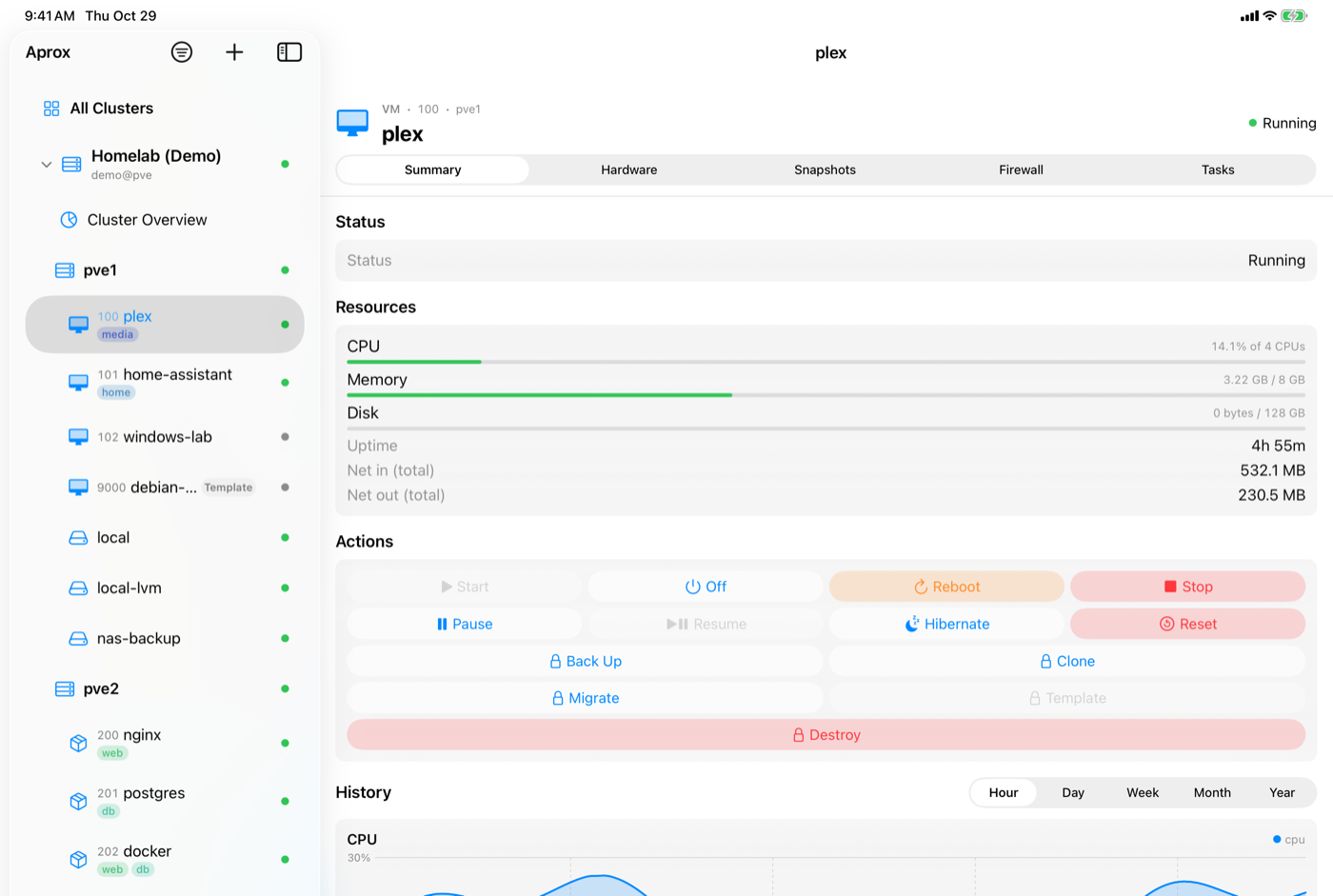
Touch and hold a row in the sidebar (or secondary-click it) to see what you can do with it. The menus are the same as the Mac's right-click menus, except that Open Console is not in them:
- Guest: Start, Shut Down, Reboot, Stop; More Power Actions › Pause, Resume, Hibernate, Reset (virtual machines only); Back Up Now…, Clone…, Migrate…, Convert to Template…, Destroy….
- Node: Restart Node, Shut Down Node, Wake Node.
- Server: Create VM, Create Container, Edit, Logout, Delete.
On the free plan, actions that need Aprox Pro show "(Pro)" with a lock. See Find your way around for details.
Use a hardware keyboard
With a Magic Keyboard, Smart Keyboard or any Bluetooth keyboard, the shortcuts of the Mac work on iPad as well, except Open Console:
- Press and hold ⌘ to see the shortcut overview.
- Use, for example, ⌘N to add a server, ⌘R to refresh, ⌘1 … ⌘9 to switch tabs, ⌃⌘R to start the selected guest or ⌃⇧⌘R to restart the selected node.
See Keyboard shortcuts for the full list.
Open the console
On iPad, the console is a tab of the guest or node, the same as on iPhone. Console access needs Aprox Pro and a server that signs in with a password.
- Select a guest or node.
- Tap the Console tab (or press its ⌘-number).
- Optional: tap Full Screen to give the console the whole screen. While it is full screen, the tab shows "Console paused".
With Built-in VNC, a hardware keyboard, mouse and trackpad work inside the console. See Built-in VNC console.
Good to know
- External VNC viewer is not available on iPad ("External viewers require macOS."). Use noVNC or Built-in VNC.
- Uploads above 1 GB cannot resume on iPad. If you leave the app or lose Wi-Fi, the upload starts over, so a Mac is the better place for very large ISO images. See Upload a file.
- Alerts on iPad are checked in the background when iPadOS allows it, the same as on iPhone. See Alerts and notifications.
- Widgets and Control Center controls work on iPad the same as on iPhone. See Widgets and Control Center and launcher shortcuts.
- Apple Watch pairs with iPhone only, so the watch app does not work with an iPad.
- Handoff lets you continue on the iPad what you had open on your iPhone or Mac. See Handoff.
- One App Store purchase of Aprox Pro covers iPhone, iPad and Mac on the same Apple Account.