The Content tab of a storage lists everything Proxmox VE keeps on it, sorted by name and split by type. Use it to check which ISO images and container templates are available, which backups exist for a guest, or which disk images take up space. Browsing is free. Deleting a volume needs Aprox Pro.
Where to find it
Sidebar › your server › storage (for example local or nas-backup) › Content.
See Storage overview if you cannot find the storage in the sidebar.
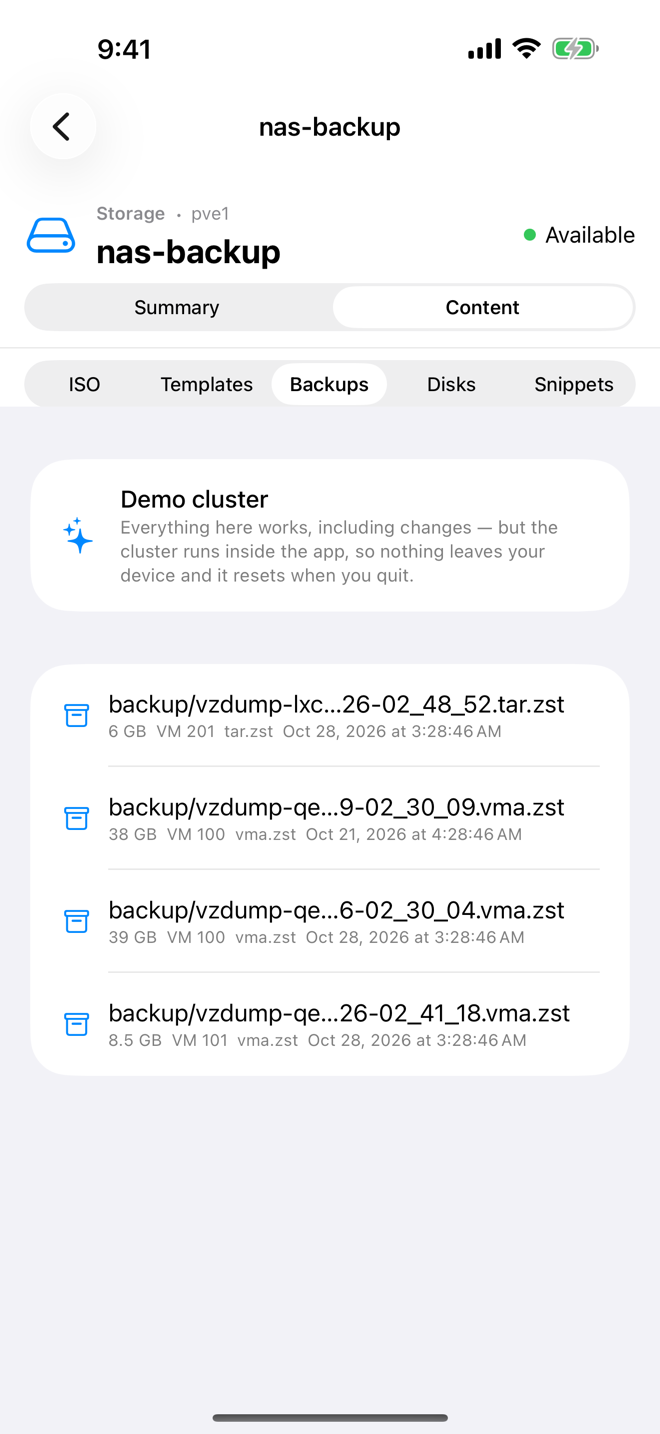
Browse by type
- Open the storage's Content tab.
- Pick a type at the top. On iPhone, iPad and Mac this is a segmented control; on Android it is a row of chips that you can scroll sideways.
| Type | What it lists |
|---|---|
| ISO | Installation images (.iso, .img) for virtual machines. |
| Templates | Container templates for new containers. |
| Backups | Backup archives of virtual machines and containers. |
| Disks | Disk images of guests. |
| Snippets | Snippet files, such as cloud-init or hook scripts. |
- Read the rows. Each one shows the file or volume name and, where Proxmox reports them, the size, the guest it belongs to (for example VM 100), the format and the creation time.
- Pull down to refresh (iPhone, iPad, Android), or press ⌘R on the Mac.
All five types are always offered. A type the storage is not configured for in Proxmox simply stays empty. When a type has nothing in it, Aprox says so: No ISO images, No templates, No backups, No disk images or No snippets.
Add content
For ISO and Templates, the toolbar (Android: the action chips under the type picker) has buttons to add files. The empty state offers the same buttons.
- Download (Android, and the empty Templates list: Download from URL): the node fetches a file from the internet. See Download from a URL.
- Upload (empty state: Upload a File): send a file from your device. See Upload a file.
- Browse Catalog (Templates only; Android: Templates): get a template from Proxmox's appliance catalog. See Appliance templates.
Backups, disk images and snippets cannot be uploaded or downloaded this way. That is a Proxmox limit, not an Aprox one.
Delete a volume
Deleting needs Aprox Pro.
- In the Content tab, find the item.
- Open its actions:
- iPhone, iPad and Mac: swipe the row to the left.
- Android: tap the menu button (three dots) at the end of the row.
- Choose Delete.
- Read the confirmation: "This will permanently remove the volume from the storage."
- Tap Delete to confirm, or Cancel to keep it.
The item disappears from the list at once, and the list reloads to confirm.
Warning
Deleting removes the ISO image, template, backup or disk image from the storage for good. There is no undo.
Restore a backup
In the Backups list, the same row actions also contain Restore. See Restore a backup.
Requirements on the server
Your Proxmox account needs rights on the storage, typically Datastore.Audit to browse it. Adding and deleting content needs further storage privileges, for example Datastore.AllocateTemplate for ISO images and templates. If a right is missing, Aprox tells you which path and privilege it needs.
Good to know
- In the demo, you can browse and delete content, but Restore, Download and Download from URL are hidden.
- If the storage cannot be read, for example because it is offline, Aprox shows the error above the list instead of an empty state.