
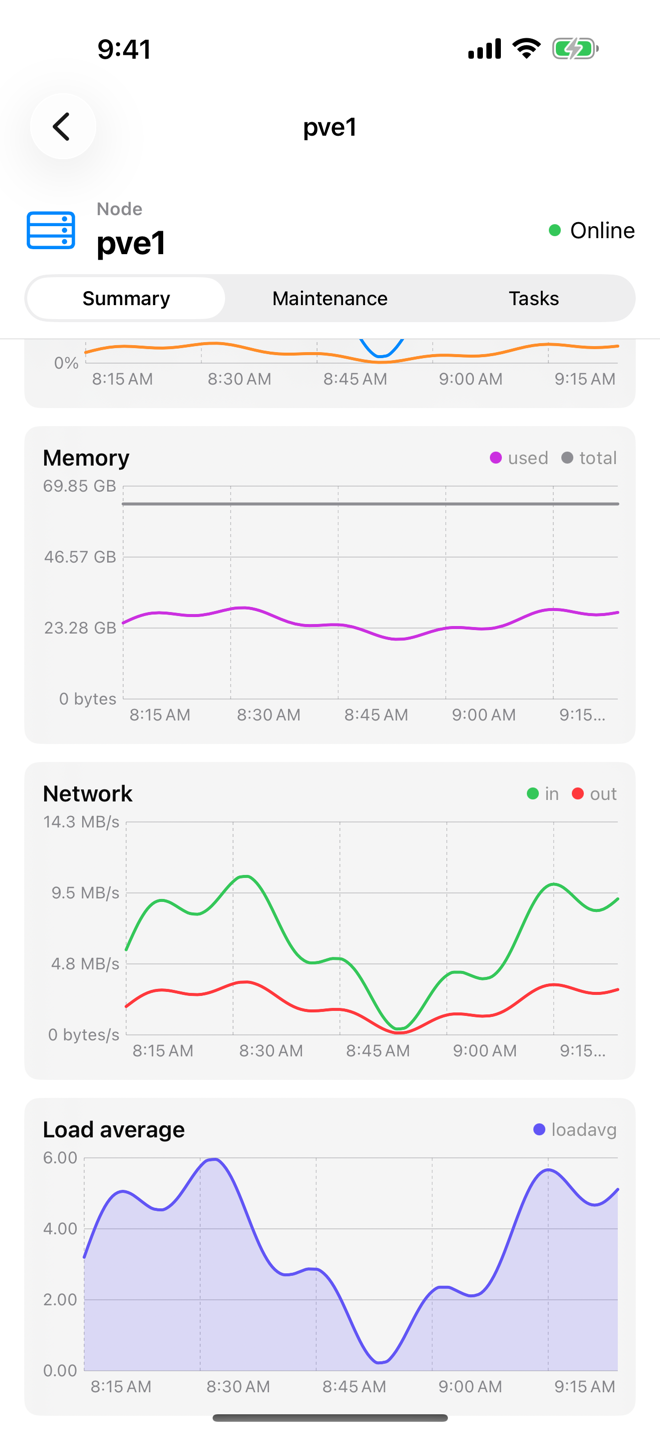
History charts show how a node, guest, storage or Backup Server has been doing over time. They use the statistics Proxmox records itself, the same data as the graphs in the Proxmox web interface, so the history is there even for times when Aprox was not open. The charts are free.
Where to find it
The History card on the Summary tab of:
- a node: Sidebar › node › Summary;
- a virtual machine or container: Sidebar › guest › Summary;
- a storage: Sidebar › storage › Summary.
On a Proxmox Backup Server, you find history charts on the Overview and on a datastore's Summary tab.
Choose a timeframe
- Open the Summary tab.
- Scroll to the History card.
- In the timeframe picker next to the title, choose Hour, Day, Week, Month or Year.
The charts start on Hour. The time axis adapts to the timeframe: times of day for an hour or a day, weekdays for a week, dates for a month, months for a year.
The charts
| Selected item | Charts | Lines in each chart |
|---|---|---|
| Node | CPU, Memory, Network, Load average | CPU: cpu and iowait. Memory: used and total. Network: in and out. Load average: one line |
| Virtual machine or container | CPU, Memory, Disk I/O, Network | CPU: one line. Memory: used and total. Disk I/O: read and write. Network: in and out |
| Storage | Used | used and total |
| Backup Server (Overview) | The node charts plus Root Disk | Root Disk: used and total |
| Backup Server datastore | Used, Disk I/O | Used: used and total. Disk I/O: read and write |
Each chart has a legend with a colored dot per line. The scale is shown in the unit that fits: percent for CPU, bytes for memory and storage, bytes per second for network and disk I/O.
How to read them
- CPU with iowait (nodes): a high
iowaitshare means the CPUs are waiting on storage, not busy computing. - Memory used versus total: a used line that sits close to total for long periods means the node or guest is short of memory.
- Disk I/O and Network show throughput per second, averaged over the period Proxmox records for that timeframe. Short peaks are smoothed out in the longer timeframes.
Good to know
- Charts refresh at most once a minute. The rest of the Summary refreshes more often.
- While the history loads, each chart shows an empty frame, so the page does not jump when the data arrives.
- A guest that was just created, or a node that was just added, has only a short history.