The Hardware tab shows a virtual machine's configuration the way the Proxmox web UI does: memory, processors, display, firmware, disks, network devices and attached devices. With Aprox Pro you can change any of it, add and remove hardware, grow disks, and review or revert changes that Proxmox has queued until the next restart. Viewing the hardware is free.
Where to find it
Sidebar › plex › Hardware.
On the free plan the tab shows the banner Read-only — Aprox Pro unlocks editing. with Unlock. Tapping a row or Add opens an overview of Aprox Pro.
For containers, see Container hardware.
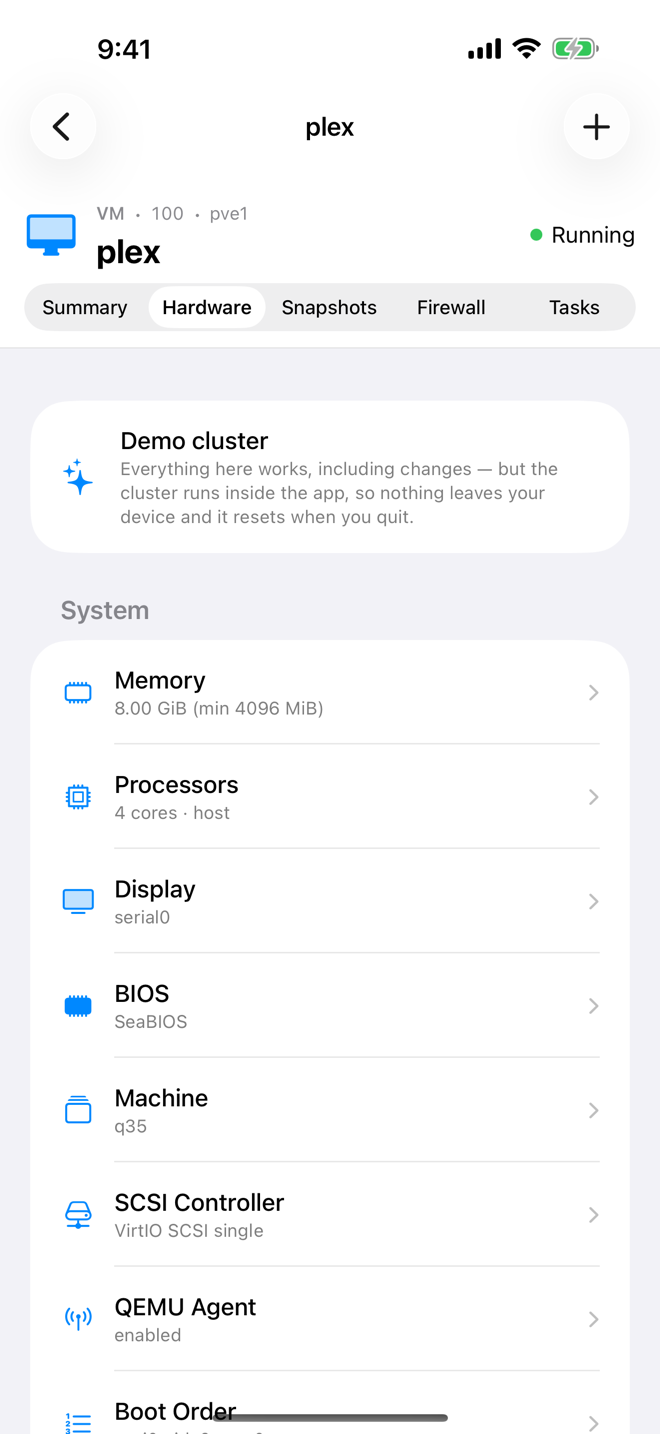
Read the hardware list
The rows are grouped into sections such as System, Storage, Network, Devices and Other. Each row shows the item's name and a short summary of its settings, for example the disk size and storage, or the network model and bridge.
| Section | Typical rows |
|---|---|
| System | Memory, Processors, Display, BIOS, Machine, SCSI Controller, QEMU Agent, Boot Order, OS Type, EFI Disk, TPM State |
| Storage | Hard disks (for example scsi0), CD/DVD drives, detached disks (unused0, …) |
| Network | Network devices (net0, net1, …) |
| Devices | USB and PCI devices, serial and parallel ports, Audio Device, VirtIO RNG, VirtIO FS shares |
| Other | Configuration keys that fit none of the above |
A row can carry a badge while Proxmox holds a change for it:
- Pending reboot: the item was changed, and the change applies at the next stop and start.
- Pending add: the item was added and appears at the next stop and start.
- Removal pending: the item is removed at the next stop and start. The row is dimmed.
Edit an item
- Tap the row to open its editor.
- Change the values.
- Tap Save.
If the VM is stopped, the change applies at once. If it is running, Proxmox applies what it can hot-plug and queues the rest under Pending changes (see below). If Proxmox refuses a change, the editor stays open and shows why.
The editors and their fields:
Memory
| Field | Meaning |
|---|---|
| Memory (MiB) | The memory assigned to the VM. |
| Min memory (balloon) (MiB) | With a value below Memory, Proxmox can take memory back from the VM down to this minimum when the node needs it (ballooning). Leave it empty to remove the setting. |
Processors
| Section | Fields |
|---|---|
| Topology | Sockets, Cores per socket, vCPUs (hotpluggable) (how many of the cores are active; empty means all), NUMA |
| Type | CPU type: Default, or a model such as host, kvm64, x86-64-v2-AES, x86-64-v3 or a specific Intel or AMD generation. Any CPU flags already set on the VM are kept. |
| Limits | CPU limit (how much CPU time the VM may use in total, in cores; "0 = unlimited"), CPU units (weight) (the VM's share of CPU time relative to other guests) |
Display
- Card: Default, Standard VGA, SPICE (qxl), SPICE (qxl2), SPICE (qxl3), SPICE (qxl4), VirtIO-GPU, VirGL GPU, VMware compatible, Cirrus Logic, Serial 0 (a serial terminal instead of a screen) or No display.
- Memory (MiB): display memory; leave empty for the default.
Choosing Serial 0 makes the VM's console a serial console. Aprox then opens it with the console type you chose under Settings › Serial Console. See Console.
BIOS
- Type: SeaBIOS (default), SeaBIOS or OVMF (UEFI). A UEFI VM also needs an EFI Disk.
Machine
- Type: Default (i440fx), q35 or pc (i440fx).
- Or version: pin a specific machine version instead, for example
pc-q35-7.2.
SCSI Controller
- Type: VirtIO SCSI single (recommended), VirtIO SCSI, LSI 53C895A, LSI 53C810, MegaRAID SAS 8708EM2 or VMware PVSCSI.
QEMU Agent
- Enable QEMU Guest Agent: lets Proxmox talk to the agent inside the VM. Needed for the Guest agent details.
- Under Settings, shown while the agent is enabled:
- Agent type: VirtIO (default), VirtIO or ISA.
- Run fstrim after move/migrate: trims the disks after a disk move or migration, so thin storage gets freed space back.
- Freeze filesystems on backup: freezes the guest's file systems while a backup snapshot is taken (on by default).
Boot Order
- The Boot order section lists the devices the VM tries, in order. With none, it reads No devices selected.
- Use the up and down arrows next to a device to move it.
- Tap the red minus to take a device out of the boot order.
- Under Available, tap a disk, CD/DVD drive or network device to add it at the end.
- Tap Save.
OS Type
- OS Type: Default, Linux (2.6 / 3.x / 4.x / 5.x / 6.x), Linux 2.4, Windows 11/2022/2025, Windows 10/2016/2019, Windows 8/2012/R2, Windows 7/2008r2, Windows XP/2003, Windows 2000, Solaris kernel or Other. Proxmox uses it to choose sensible defaults for the guest.
Hard disk
| Section | Fields |
|---|---|
| Slot | Bus (SCSI, VirtIO, SATA, IDE) and Index. Set when you add the disk. |
| Disk image | For a new disk: the storage, Disk size (GiB) and Format (Default, Raw, QCOW2, VMDK; which ones work depends on the storage). For an existing disk: its Volume and Size, read-only. |
| Options | SSD emulation, Discard / TRIM, IO thread, Include in backup, Replicate, Cache (Default (no cache), None, Write through, Write back, Write back (unsafe), Direct sync) |
An existing disk also offers Resize disk… (see below).
CD/DVD drive
| Section | Fields |
|---|---|
| Slot | Bus (IDE, SATA, SCSI) and Index |
| Media | Source: ISO image (then choose the ISO from a storage), Use host CD/DVD drive, or Do not use any media |
To change the ISO in a VM's drive, open the drive, choose another ISO image and tap Save.
Network device
| Section | Fields |
|---|---|
| Slot | Index |
| Hardware | Model: VirtIO (paravirtualized), Intel E1000 (and its 82540EM, 82544GC and 82545EM variants), Realtek RTL8139, VMware vmxnet3, AMD PCnet, NE2K ISA, NE2K PCI. MAC address: leave auto to have Proxmox generate one. |
| Network | The bridge (for example vmbr0), VLAN tag, Firewall (lets the guest firewall filter this device), Disconnect (link down) (unplugs the virtual cable) |
| Advanced | Rate limit (MB/s) (empty means unlimited), MTU, Queues (multiqueue) |
USB device
- Source: Vendor:Product / bus.port (then enter the Host device, "e.g. 0951:1666 or 1-2") or Mapped resource (then enter the Mapping name of a USB resource mapping defined in Proxmox).
- Use USB 3.0.
PCI device
- Device › Source: Host PCI ID (then enter the Device address, "e.g. 0000:01:00.0") or Mapped resource (then the Mapping name).
- Options: PCI Express, Primary GPU (x-vga), ROM-Bar, MDev type (optional, for mediated devices such as vGPU profiles).
Serial port
- Mode: Socket (recommended), or a host port /dev/ttyS0 to /dev/ttyS3. Parallel ports, if the VM has any, open the same editor.
Audio
- Device: Intel HDA (ich9-intel-hda), Intel HDA or AC97.
- Driver: SPICE or None.
VirtIO RNG
- Source: /dev/urandom (recommended), /dev/random (blocking) or /dev/hwrng.
- Max bytes per period and Period (ms): limit how much entropy the VM may draw.
EFI Disk
- The storage for the EFI variables.
- EFI type: 4 MiB (recommended) or 2 MiB.
- Pre-enrolled keys (Secure Boot): enrolls the standard Secure Boot keys, so Secure Boot is on from the start.
TPM State
- The storage for the TPM state.
- Version: v2.0 or v1.2. Windows 11 needs v2.0.
VirtIO FS
- Mapped directory ID (a directory mapping defined in Proxmox), Cache (auto, never, always, metadata), Expose xattrs, Expose ACLs.
- You can edit an existing VirtIO FS share, but not add a new one in Aprox. Add it in the Proxmox web UI.
Add hardware
- Tap Add (+).
- Choose what to add: Hard Disk, CD/DVD Drive, Network Device, USB Device, PCI Device, Serial Port, Audio Device, VirtIO RNG, EFI Disk or TPM. The last four appear only if the VM does not have one yet.
- Fill in the editor (sheet titles such as Add Hard Disk). Aprox suggests the next free slot.
- Tap Save.
Remove or detach hardware
Swipe left on a row (Android: open the row's menu) and choose the action:
| Row | Action | What happens |
|---|---|---|
| Hard disk, EFI Disk, TPM State | Detach | The dialog explains: "The volume keeps its data and moves to an unused slot. Permanently delete it from there if you no longer need it." The disk reappears as a detached disk (unused0, …). |
| Detached disk | Delete | Confirm Permanently delete … › Delete forever. "This will purge the underlying volume from storage and cannot be undone." |
| Any other device | Remove | The device is removed from the configuration. |
Warning
Delete forever erases the disk's data from the storage. Detaching is the safe step; delete only when you are sure nothing on the volume is still needed.
Reattach or delete a detached disk
- Tap the detached disk (for example Detached Disk (unused0)). The sheet shows the Volume and its Size.
- To use it again, under Reattach choose the Bus and Index, set the Options (SSD emulation, Discard / TRIM, IO thread) and tap Reattach.
- To get rid of it instead, tap Permanently delete. "Deleting purges the underlying volume from storage."
Resize a disk
Disks can only grow, never shrink.
- Tap the disk › Resize disk….
- The Resize Disk sheet shows the Current Disk and Size.
- Under Grow by, enter the amount to add and choose the unit (MiB, GiB or TiB).
- Tap Grow.
Proxmox grows the virtual disk right away, even while the VM runs. Afterwards, grow the partition and file system inside the guest, for example with growpart and resize2fs on Linux, or Disk Management on Windows.
Review and revert pending changes
When the VM is running, Proxmox cannot apply some changes at once, such as a new CPU type or a different BIOS. It queues them.
- A Pending changes section appears at the top of the tab, above the hardware list. Each line names the configuration key and shows the change, for example
2 → 4, "will be added as …" or "will be removed". - To undo one change, tap Revert on its line.
- To undo all of them, tap Revert all pending changes.
- To apply them, shut the VM down and start it again. The footer reminds you: "These apply the next time the VM is stopped and started. A reboot from inside the guest is not enough."
Requirements on the server
Editing hardware typically needs the VM.Config.* privileges on the VM, for example VM.Config.Disk for disks, VM.Config.Memory, VM.Config.CPU, VM.Config.Network, VM.Config.HWType and VM.Config.Options. New disks also need Datastore.AllocateSpace on the storage. If a privilege is missing, Aprox names it in the error, for example "It needs the VM.Config.Disk privilege…".
Good to know
- Someone else edited the VM. Aprox sends each change together with the configuration version it showed you. If the VM was changed elsewhere in the meantime, Proxmox refuses and Aprox says "The configuration changed on the server, so nothing was applied." Pull to refresh and make the change again.
- Passthrough blocks live migration. A running VM with USB or PCI passthrough cannot be migrated. See Migrate a guest.