
The Cluster Overview is the front page of one Proxmox VE cluster. It tells you at a glance whether the cluster is healthy, how much of it is in use, how much has been promised to guests, and which guests are working hardest. Every node, guest, storage and task it lists opens with a tap. The Cluster Overview is free.
Where to find it
- Sidebar › server › Cluster Overview.
- It also opens when you sign in to a server.
A Proxmox Backup Server has its own Overview instead. See Backup Server overview.
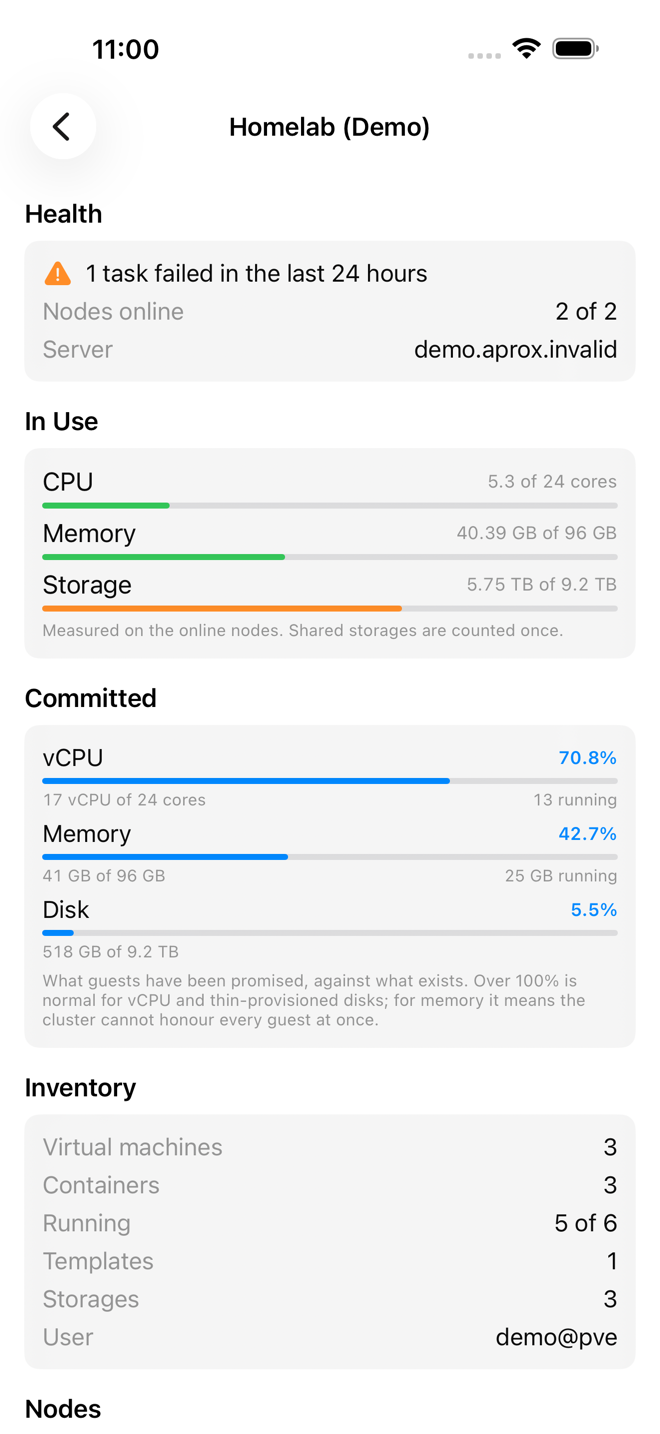
Read the cards
Health
- Everything is up when every node is online, no storage is 85% full or more, and no task failed in the last 24 hours.
- Otherwise one line per problem, for example "pve2 is offline", "local is 91% full" or "2 tasks failed in the last 24 hours".
- Nodes online: for example "2 of 2".
- Server: the host Aprox is connected to.
In Use
What the cluster actually consumes right now:
- CPU: cores in use of all cores, as a percentage;
- Memory: used of total;
- Storage: used of total.
"Measured on the online nodes. Shared storages are counted once."
Committed
What has been promised to guests, compared with what exists:
- vCPU: virtual CPUs assigned to guests, against the physical cores;
- Memory: memory assigned to guests, against the installed memory;
- Disk: disk space assigned to guests, against the storage capacity.
For vCPU and memory, Aprox also shows how much of it belongs to running guests.
"What guests have been promised, against what exists. Over 100% is normal for vCPU and thin-provisioned disks; for memory it means the cluster cannot honour every guest at once." The 100% mark is drawn in the accent color, not in red.
Inventory
Virtual machines, Containers, Running (running guests of all guests), Templates (when there are any), Storages, and the User you are signed in as.
Nodes
One entry per node: status dot, name, running and total guests, uptime, and bars for CPU, Memory and Root filesystem. Tap a node to open its Node summary.
Storage
One entry per storage with used and total space, and below it the node, the storage type and whether it is shared. A storage that does not report a size shows "unavailable". Tap a storage to open its Storage overview.
If the account cannot see any storage, the card says "No storages visible to this user."
Busiest Guests
The five running guests that use the most CPU, ranked by cores actually in use, with their memory use. Tap a guest to open its Guest summary.
Failed Today
Tasks that failed in the last 24 hours, with how long ago they ended and the error Proxmox reported. Tap a task to open its log in Cluster Tasks. See Tasks and logs.
The Busiest Guests and Failed Today cards only appear when they have something to show.
Refresh
The overview updates by itself as Aprox refreshes the cluster. To refresh at once, pull down (iPhone, iPad, Android) or press ⌘R (Mac, iPad with a keyboard).
Good to know
- Before the first data arrives, the cards show placeholders. If nothing can be loaded, the page says "Nothing to show yet".
- The numbers reflect what your Proxmox account is allowed to see. With a restricted account or token, some nodes, guests or storages may be missing.
- On the free plan, one promotion card appears at the end of the overview. Aprox Pro removes it. See Promotions on the free plan.