The Maintenance tab shows how healthy a node is underneath its guests: which package updates are waiting, whether the Proxmox services are running, and whether its disks report problems. It also offers a few safe actions, such as refreshing the package index or restarting a service. Looking is free; the two actions need Aprox Pro.
Where to find it
Sidebar › pve1 › Maintenance.
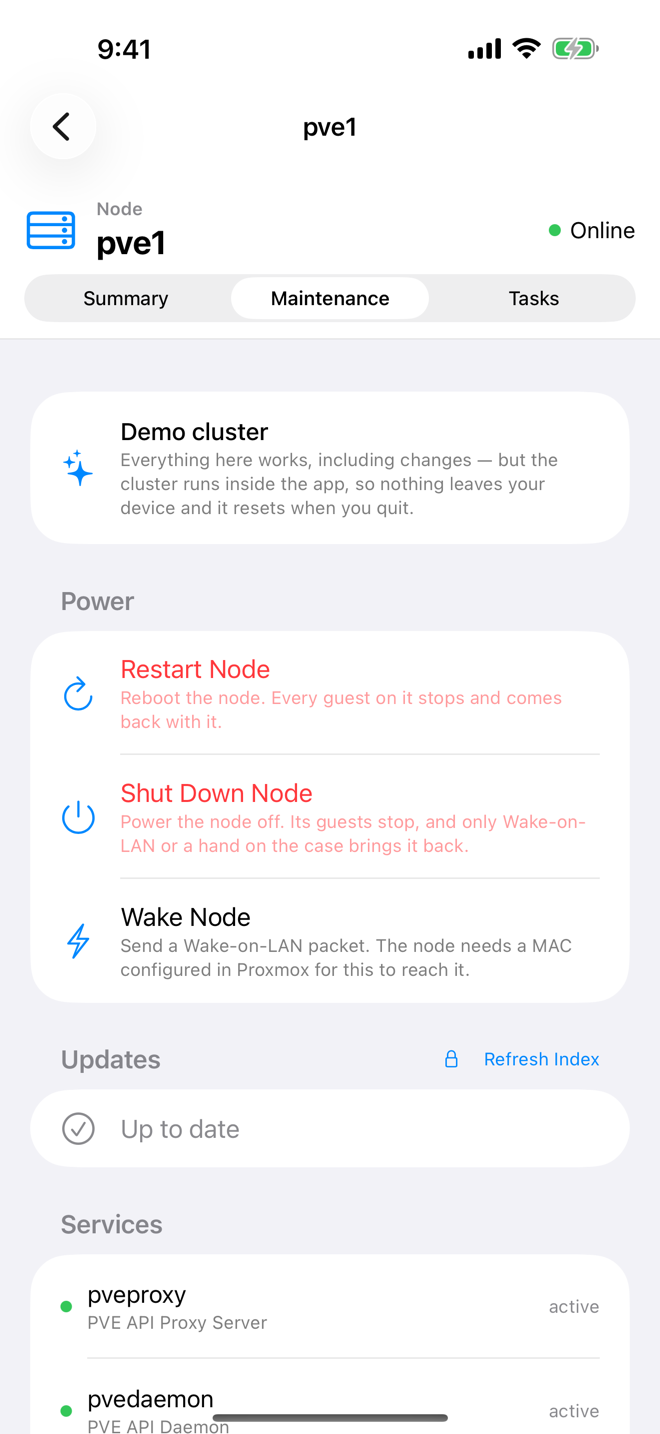
The tab has these parts, from top to bottom:
- Needs attention: anything that wants your attention right now, such as a failing disk or a degraded service. The section appears only when there is something to show.
- Power: Restart, Shut Down and Wake for the node. See Restart, shut down and wake a node.
- A picker that switches between Updates, Services and Disks.
On the free plan a banner reads Read-only — Aprox Pro unlocks package and service actions. Tap Unlock to see what Aprox Pro includes.
Check for package updates
- Choose Updates in the picker.
- Read the list. Each row shows the package name, the version change (for example
8.2.4 → 8.2.7) and, where available, the package's short description. Packages that the upgrade would newly install carry a new badge. With nothing pending, the list reads Up to date. - Below the list, Aprox says how many packages are pending and reminds you to install them from the node's shell or the Proxmox web UI.
Refresh the package index
The list shows what the node knew at its last package index refresh. To check for new updates:
- Tap Refresh Index.
- Aprox shows Refreshing package index… while the node fetches the latest package lists, the same as running
apt updateon the node. - When it finishes, the Updates list shows the current state.
Refreshing the index needs Aprox Pro.
Note
Aprox does not install updates. An upgrade can ask questions that an app cannot answer, so install them from the node shell or the Proxmox web UI, for example with apt full-upgrade.
Check and restart services
- Choose Services in the picker.
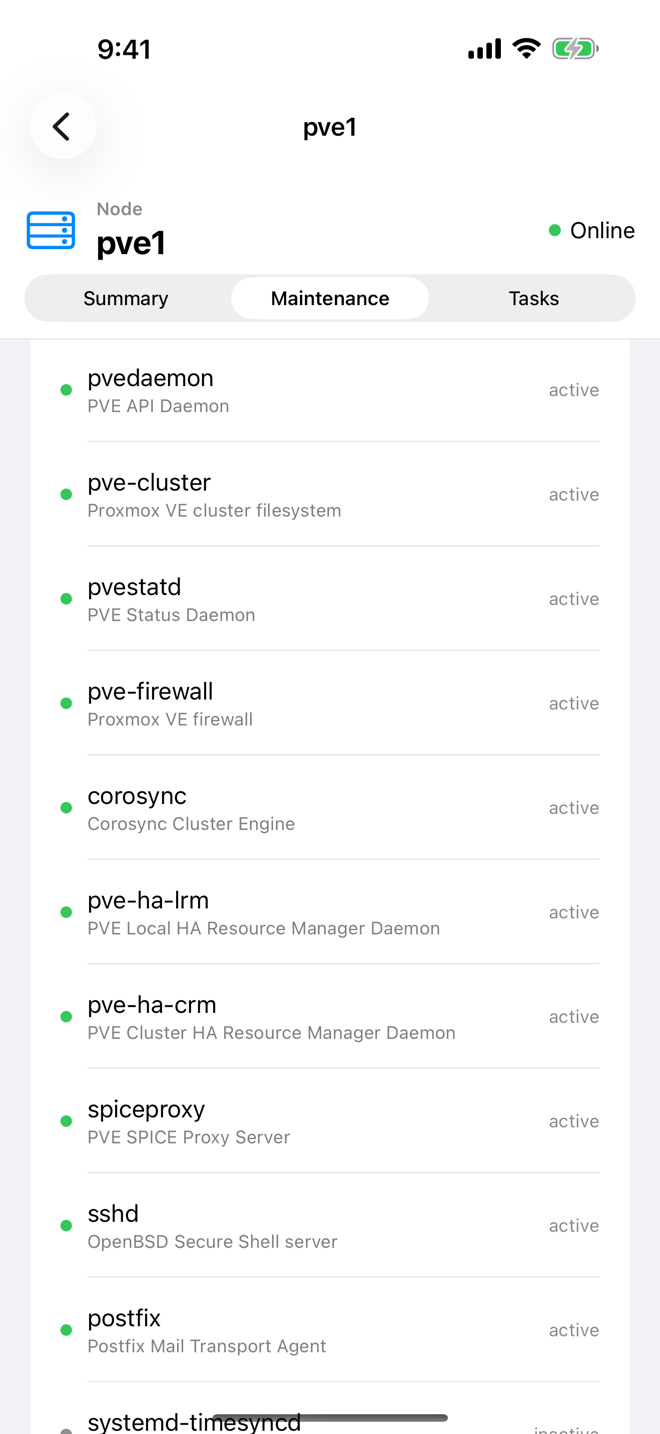
- The list shows the Proxmox services on the node, for example
pveproxy,pvedaemonorpve-cluster, with their state. Degraded services are flagged and also appear under Needs attention. - To restart a service, tap Restart next to it.
- Confirm Restart pveproxy?. The dialog explains: "The service stops and starts again. If it is the one serving this app, the connection drops for a few seconds."
- Aprox shows Restarting … while the service comes back.
Restarting services needs Aprox Pro.
Check disks and SMART
- Choose Disks in the picker.
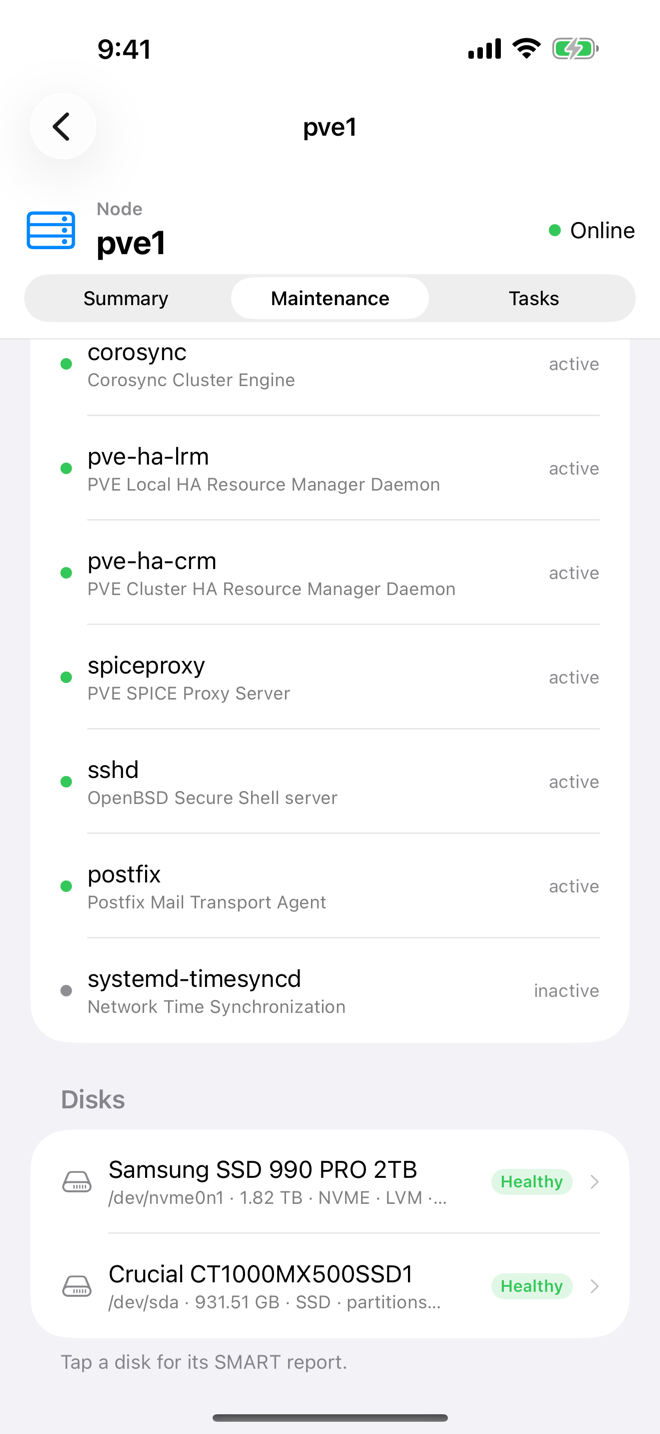
- The list shows every physical disk of the node with its health:
- Healthy: the disk reports no problem.
- Failing: the disk's own SMART check reports a problem. Failing disks also appear under Needs attention.
- No SMART: the disk does not report SMART data.
- Tap a disk for its SMART report ("Tap a disk for its SMART report.").
- The Report shows:
| Field | Meaning |
|---|---|
| Disk | The disk model. |
| Device | The device path on the node, for example /dev/sda. |
| Serial | The serial number, useful when you replace the disk. |
| Size | The disk's capacity. |
| Life remaining | For SSDs that report it, how much of the rated write endurance is left. |
| Health | The overall SMART verdict. |
| Attributes | The individual SMART attributes with their current and worst values and their thresholds. An attribute below its threshold means the drive itself considers this a problem. |
Viewing disks and SMART reports is free.
Requirements on the server
Each part of the tab loads on its own. If your account lacks a privilege for one part, that part shows an error and the others still work. Typical privileges:
| Part | Typical privilege |
|---|---|
| Viewing updates, services and disks | Sys.Audit on the node |
| Refresh Index, restarting a service | Sys.Modify on the node |
| Power actions | Sys.PowerMgmt on the node |
Good to know
- Disks behind USB or RAID. USB enclosures and hardware RAID controllers often hide SMART data. Such disks show No SMART, with the explanation "This disk does not report SMART. USB enclosures and hardware RAID volumes usually hide it."
- Restarting the service Aprox talks to. If you restart
pveproxyon the node Aprox connects through, the connection drops for a few seconds and then comes back by itself. - No disks listed. If the node has no physical disks that Proxmox can see, for example a virtualized test node, the tab says This node reports no physical disks.