Aprox is a native Mac app with the same features as on iPhone and iPad, plus a few things that only make sense on a desktop. Cluster health sits in the menu bar, consoles open in their own windows, and you can drop an ISO onto a storage to upload it. One App Store purchase of Aprox Pro covers iPhone, iPad and Mac on the same Apple Account.
Where to find it
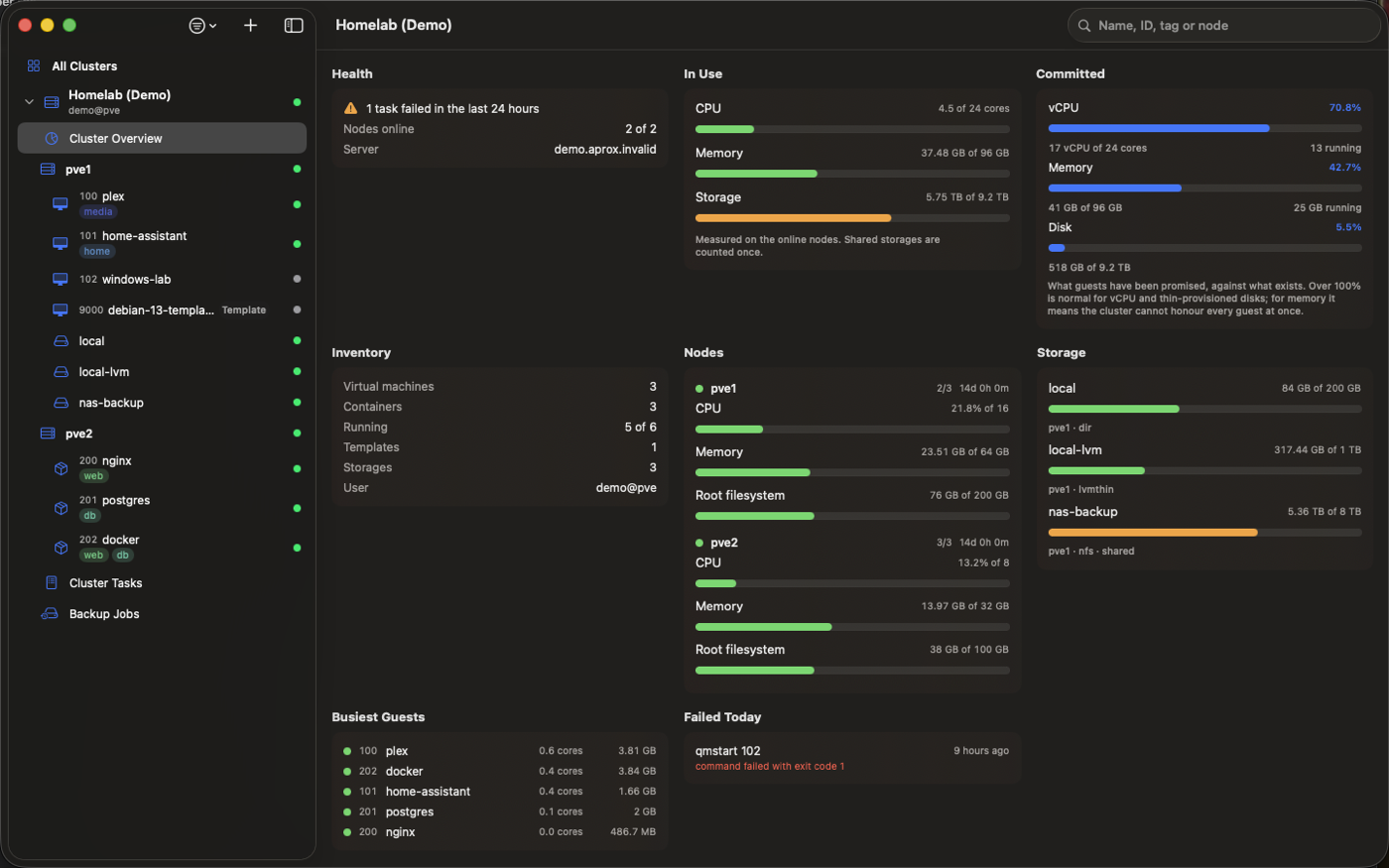
- Main window: sidebar on the left, detail on the right. If you closed it, press ⌘N (File › Add Server…) or click Open Aprox in the menu bar extra to bring it back.
- Menu bar extra: the server-rack icon in the menu bar.
- Settings: Aprox › Settings… (⌘,). The Mac has no Settings row in the sidebar.
- Menus: File, View, Guest and Node hold the commands and their keyboard shortcuts. See Keyboard shortcuts.
Use the menu bar extra
The menu bar extra shows cluster health at a glance and lets you start and shut down guests with one click, without opening a window.
The icon
- A server-rack icon while everything is fine.
- A warning triangle when any node of any connected cluster stops reporting. Its tooltip reads "Aprox — a node is unreachable", and the panel header shows Node offline.
Open the panel
- Click the Aprox icon in the menu bar.
- For each Proxmox VE server, the panel shows:
- the server name and "x/y running" (running guests out of all guests);
- one row per node with a status dot, CPU % and memory %;
- one row per guest with its name and VMID, sorted by VMID. Templates are not listed.
Start or shut down a guest
- Open the panel.
- Click the play button next to a stopped guest ("Start <guest>"), or the stop button next to a running one ("Shut down <guest>"). Shut down is a clean shutdown, not a hard stop.
Use other power actions
- Right-click a guest in the panel.
- Choose Start, Shut Down, Reboot or Stop. For virtual machines, Pause, Resume, Hibernate and Reset are also available. Actions that do not apply to the guest's current state are grayed out.
Footer
- Open Aprox opens the main window.
- The gear button opens Settings.
- The power button quits Aprox (Quit Aprox).
Empty states
- "Add a Proxmox VE server to see it here." when you have no server yet.
- "Open Aprox and sign in to see your cluster here." when no server is signed in.
Turn it on or off
- Open Settings (⌘,).
- In Menu Bar, switch Show cluster status in the menu bar on or off. It is on by default.
Aprox keeps running after you close its last window, so the menu bar extra and alerts keep working. To quit completely, use Quit Aprox in the panel or ⌘Q.
The menu bar extra and its power buttons are free. Backup Servers are not shown in it.
Open a console window
On the Mac, a console is a window of its own instead of a tab. Console access needs Aprox Pro and a server that signs in with a password.
- Select a guest or node in the sidebar.
- Open the console in one of these ways:
- click Open Console in the toolbar;
- press ⇧⌘K;
- choose Guest › Open Console;
- right-click the guest or node in the sidebar and choose Open Console.
- The console opens in its own window, 1024×720 by default.
Console windows behave like any Mac window:
- Resize them freely or switch them to full screen.
- Find every open console in the Window menu.
- Opening the console of the same guest again brings its existing window to the front instead of opening a second one.
On the Mac you can also hand a console to an external VNC app such as Screen Sharing. See External VNC viewer. Running bridges are listed in Settings › Active VNC bridges, each with a Stop button.
Upload by drag and drop
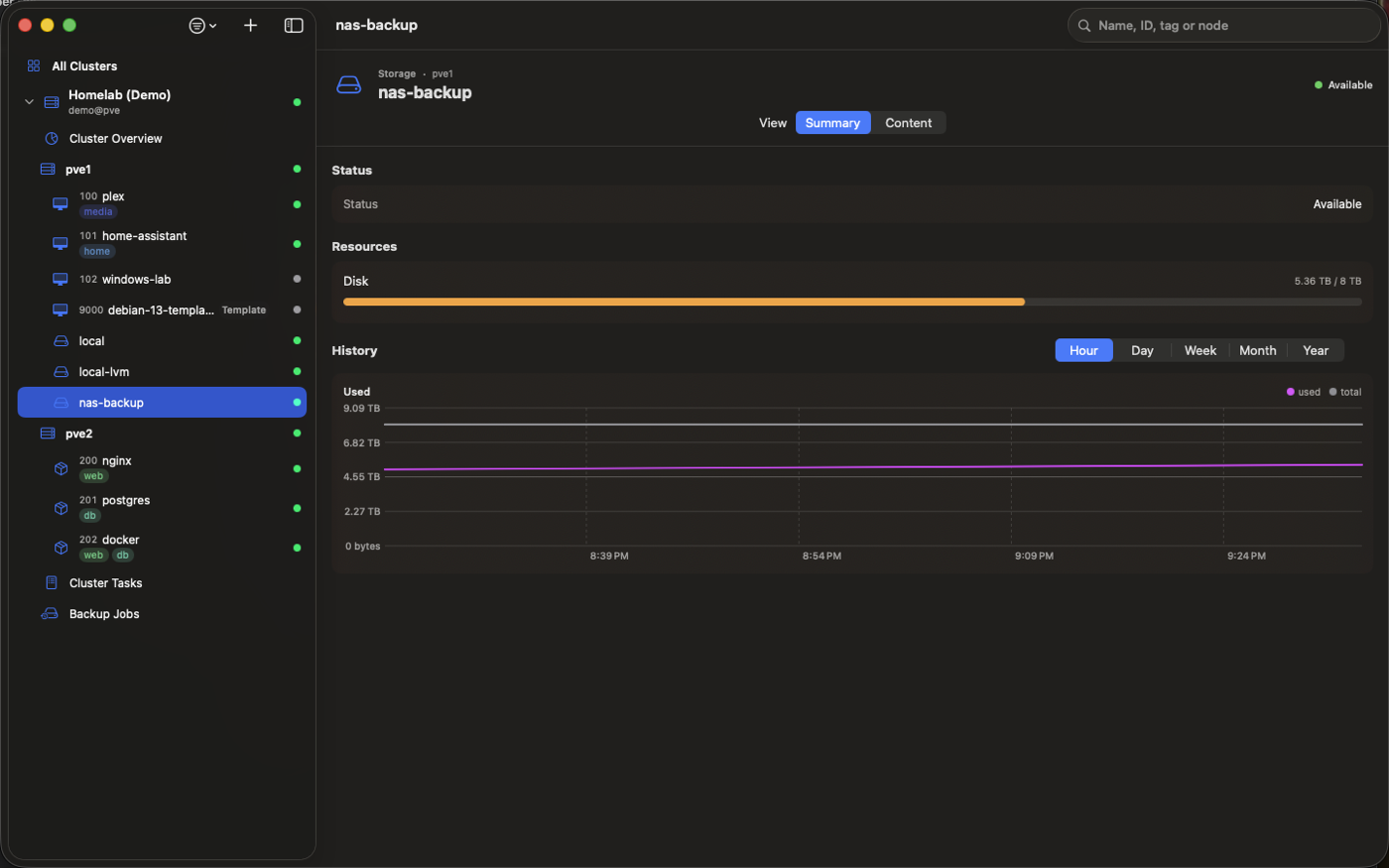
- Select a storage in the sidebar, for example
local, and open Content. - Choose ISO or Templates.
- Drag an ISO image or a container template from Finder onto the list. A dashed outline shows where you can drop it.
- The Upload to Storage sheet opens with the file filled in. Check it and click Upload.
Uploading needs Aprox Pro. See Upload a file for every field of the upload sheet.
Other differences on the Mac
- Settings window. Settings open in their own window (⌘,) instead of a sidebar row.
- Diagnostics. Settings › Diagnostics › Copy Diagnostics copies the report to the clipboard instead of opening a share sheet. See Diagnostics report.
- Alerts. Alerts are raised only while Aprox is running. Keep the menu bar extra on so Aprox stays running without a window. See Alerts and notifications.
- Context menus. Right-click any row in the sidebar for the same menus you get by long-pressing on iPhone and iPad, plus Open Console at the top for guests.
- Not on the Mac: Live Activities, Control Center controls and the watch app. The Mac has the Cluster Status widget in small, medium and large; see Widgets.