Every virtual machine and container (together called guests) has its own page in Aprox. The Summary tab answers the everyday questions: is it running, how busy is it, what is its IP address, and what can I do with it. From here you reach every action for the guest, from starting it to cloning or destroying it. Viewing a guest is free.
Where to find it
- In the sidebar, expand your server, for example Homelab (Demo).
- Tap the guest, for example 100 plex. With the default grouping by Node you find it under its node; you can also group by Pool or Tag, or use the search field Name, ID, tag or node.
- The guest opens on the Summary tab.
You can also open a guest from the Busiest Guests card on the Cluster Overview.
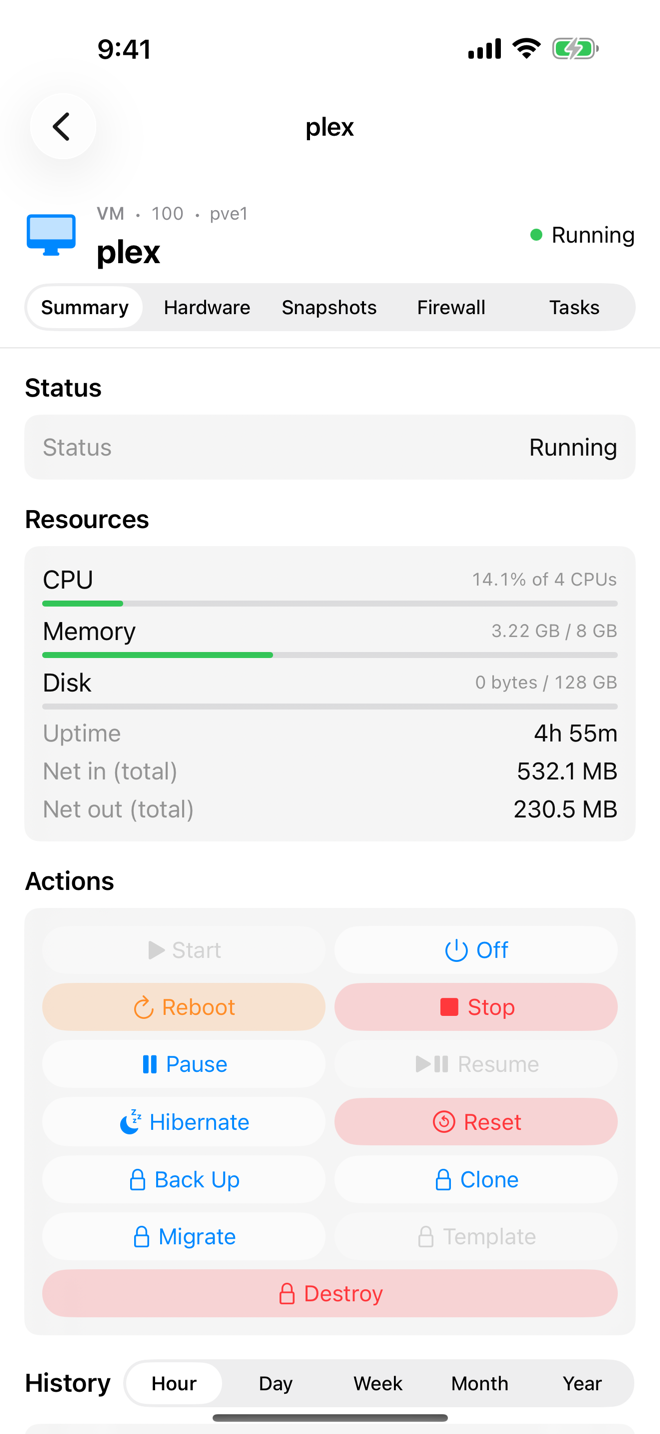
The header shows the guest's type, VMID, node, name and live status. Below it are the tabs:
| Guest | Tabs |
|---|---|
| Virtual machine or container | Summary, Console, Hardware, Snapshots, Firewall, Tasks |
| Template | the same, without Snapshots |
On iPhone, iPad and Mac the tabs sit in a segmented picker; on Android they are scrollable tabs. On a Mac, and on an iPad with a keyboard, ⌘1 to ⌘9 switch between them. On the Mac the console opens in a window instead of a tab.
In the sidebar, a guest's row shows its VMID and name, a Template badge for templates, an orange locked: … label with the reason while the guest is locked (for example during a backup), up to three colored tag chips and a status dot.
Read the summary
The Summary tab has up to five cards.
| Card | What it shows |
|---|---|
| Status | Status (for example running or stopped). Lock appears while the guest is locked and names the reason. QMP appears for a virtual machine whose QEMU state differs from its status, for example paused. |
| Resources | CPU as a percentage of the guest's CPUs (for example "12% of 4 CPUs"), Memory used against the assigned memory, Disk, Uptime, and the total network traffic since start: Net in (total) and Net out (total). |
| Actions | The power actions and the guest operations. See below. |
| Guest | Virtual machines with a running QEMU guest agent only: hostname, operating system, kernel and IP addresses. See Guest agent details. |
| History | Charts of CPU, Memory, Disk I/O and Network for the chosen Timeframe (Hour, Day, Week, Month, Year). See History charts. |
Use the actions
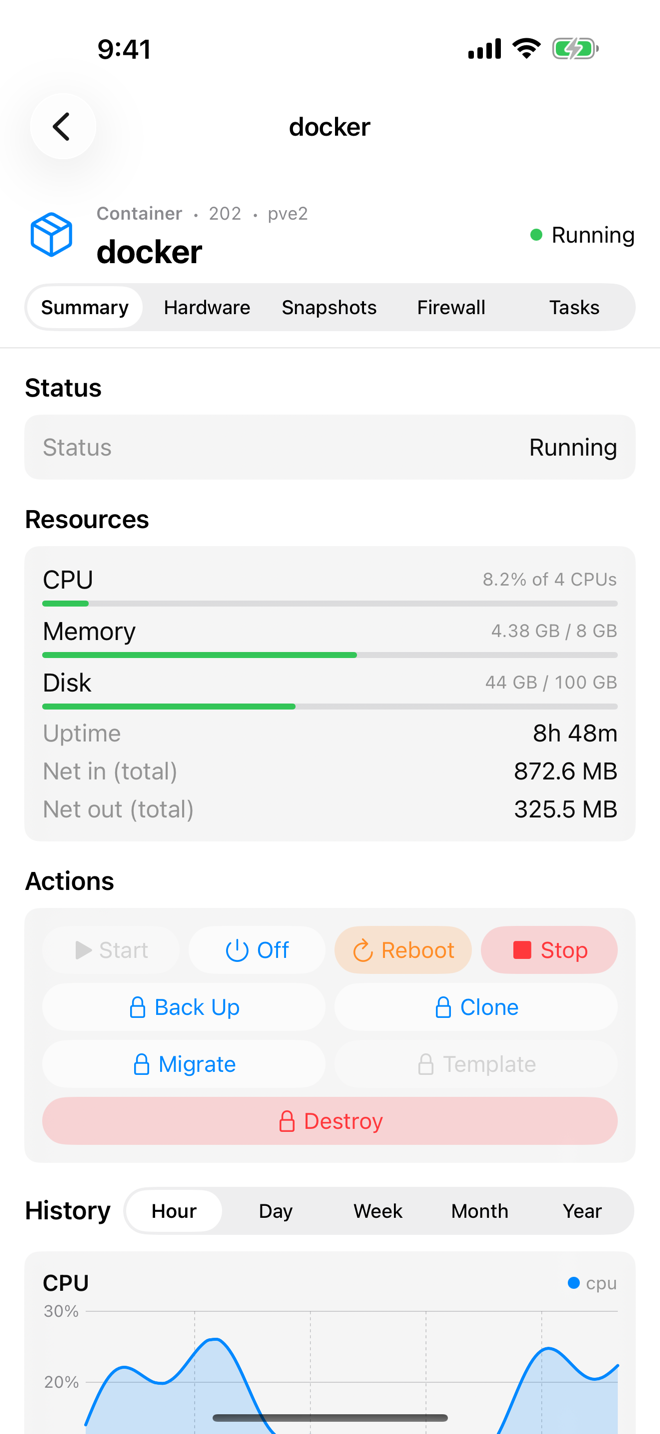
The Actions card holds two groups of buttons. Buttons that cannot apply in the guest's current state are disabled; for example, Start works only while the guest is stopped.
Power actions (free):
- Start, Off (shut down), Reboot and Stop for every guest.
- Pause, Resume, Hibernate and Reset for virtual machines only.
What each one does is explained in Power actions.
Operations (Aprox Pro):
| Button | What it does | Article |
|---|---|---|
| Back Up | Runs a one-off backup to a storage you choose. | Back up now |
| Clone | Copies the guest or template into a new guest. | Clone a guest |
| Migrate | Moves the guest to another node. Disabled when no other node is online. | Migrate a guest |
| Template | Turns a stopped guest into a template. | Convert to template |
| Destroy | Erases a stopped guest and every disk it owns. Shown in red. | Destroy a guest |
On the free plan the operation buttons carry a lock. Tapping one opens an overview of Aprox Pro that explains the feature.
The same actions are also in the guest's context menu: long-press the guest in the sidebar (right-click on a Mac). There they read Back Up Now…, Clone…, Migrate…, Convert to Template… and Destroy…, and the VM-only power actions sit under More Power Actions.
View the guest's tasks
- Open the guest's Tasks tab.
- The list shows the recent tasks that touched this guest, such as starts, backups, snapshots and migrations. With nothing to show, it reads No recent tasks.
- Tap a task for its details and live log.
If an action fails because the guest is locked, for example "A backup is running on this guest right now.", the Tasks tab shows which task holds the lock. Viewing tasks is free; stopping a running task needs Aprox Pro and is available on iPhone, iPad and Mac. See Tasks and logs.
Refresh
Pull down to refresh on iPhone, iPad and Android, or press ⌘R on a Mac or an iPad with a keyboard. Aprox also refreshes the guest you are looking at about every 3 seconds by itself. Charts refresh at most once a minute.
Good to know
- Templates cannot be started, so their power actions are disabled. You use them as the source for clones. They are not counted as guests on the dashboards.
- Handoff. On Apple devices you can open the same guest on another iPhone, iPad or Mac and land on the same tab. See Handoff.