A snapshot records a virtual machine or container exactly as it is at that moment, so you can return to that point later. Take one before an upgrade or a risky change, and roll back if something breaks. Aprox shows a guest's snapshots as a tree, marks where the guest currently stands, and lets you take, roll back and delete snapshots. Viewing snapshots is free; changing them needs Aprox Pro.
Where to find it
Sidebar › windows-lab › Snapshots.
Templates have no Snapshots tab. On the free plan the list shows a Read-only banner with Unlock.
Read the snapshot tree
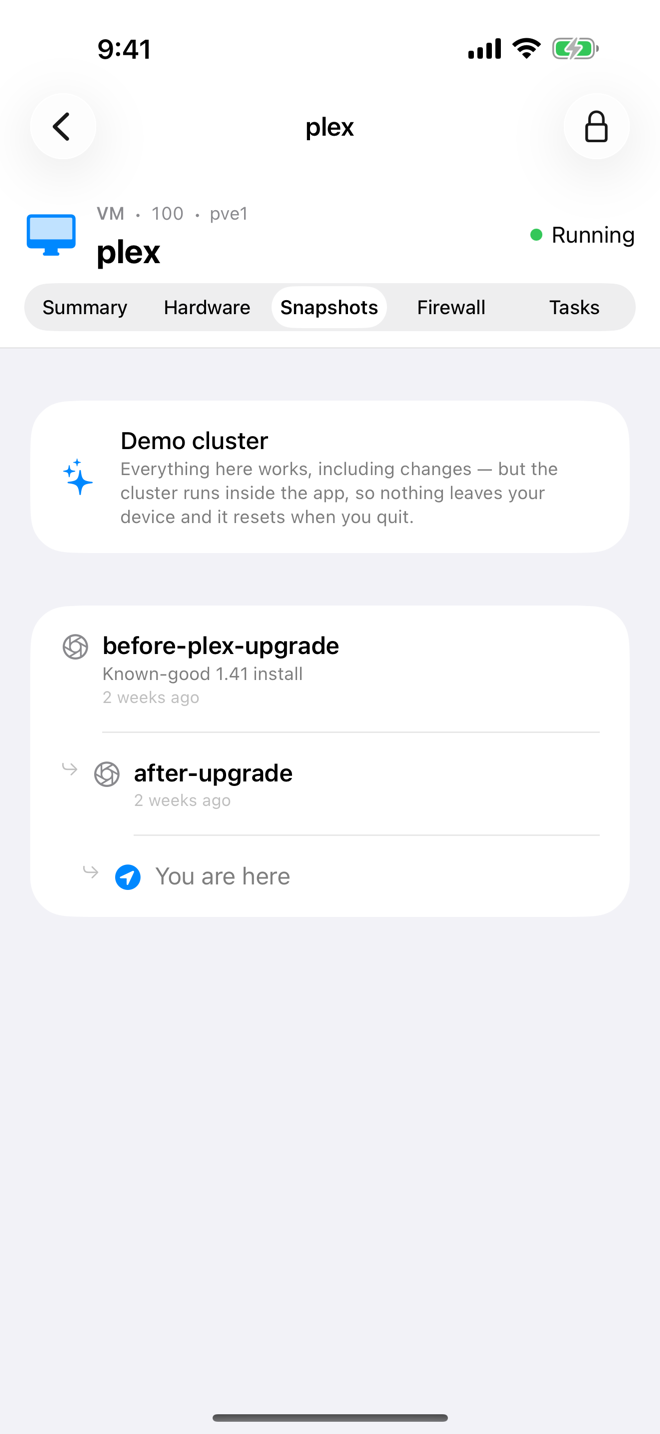
- Snapshots are shown as a tree: each snapshot sits below the one it was taken after (parent → child). If you rolled back and took new snapshots from there, the tree branches.
- You are here marks the guest's current state, below the snapshot it is based on.
- A RAM badge marks snapshots that include the virtual machine's memory.
- Each snapshot shows its name, when it was taken and its description.
- With no snapshots, the tab reads No Snapshots: "A snapshot records this guest exactly as it is now, so you can put it back."
Take a snapshot
Tap Take Snapshot in the toolbar, or Take Snapshot on the empty screen.
Enter a Name, for example
before-upgrade. The rules:- it starts with a letter;
- it contains only letters, digits, underscores (
_) and hyphens (-); - it has at most 40 characters;
- it is not already used by another snapshot of this guest.
Aprox tells you right away if a rule is broken.
Optional: enter a Description.
Virtual machines only: decide on Include memory.
- On: the snapshot also saves the running VM's memory. Aprox tells you roughly how much: "Writes about 8 GB to storage, and the guest resumes exactly where it is when you roll back."
- Off: "Without memory the snapshot covers disks only, and rolling back boots the guest fresh."
- For a stopped VM there is nothing to save: "The guest is stopped, so there is no memory to capture."
Tap Take. Aprox shows Taking snapshot… until Proxmox is done.
Roll back to a snapshot
- Find the snapshot in the tree.
- Swipe it to the left, or long-press it (right-click on a Mac). On Android, open the snapshot's menu (⋮).
- Choose Roll Back.
- Read the dialog Roll back to "name"?: "Everything written since … is discarded. This cannot be undone." It adds what happens to the guest:
- for a snapshot with memory: "This snapshot includes memory, so the guest resumes where it was."
- for a snapshot without memory, if the guest is running: "The guest is running and will be stopped."
- Confirm:
- Roll Back restores the snapshot.
- Roll Back and Start (snapshots without memory) restores it and starts the guest right away.
Aprox shows Rolling back… while Proxmox works.
Warning
Rolling back discards every change made since the snapshot, on all of the guest's disks. Copy out any data you want to keep first.
Delete a snapshot
- Swipe the snapshot to the left, or long-press it (right-click on a Mac; Android: the ⋮ menu).
- Choose Delete.
- Confirm Delete snapshot "name"?: "The guest keeps running as it is. Only the ability to return to this point is lost."
Aprox shows Deleting snapshot… while Proxmox merges the snapshot away. Deleting a snapshot does not change the guest's current state.
Requirements on the server
- Privileges: typically
VM.Snapshoton the guest, andVM.Snapshot.Rollbackto roll back. - Storage: all of the guest's disks must be on storage that supports snapshots, for example ZFS, LVM-thin, Ceph RBD, or qcow2 disk images on a directory or NFS storage. Otherwise Proxmox refuses the snapshot.
- Memory snapshots need room on the storage for the VM's memory.
Good to know
- Snapshots are not backups. They live on the same storage as the guest. If that storage fails, the snapshots are gone too. Use Back up now or scheduled backups for that.
- Snapshots cost space and speed. Each snapshot keeps old data around, and long chains can slow some storage types. Delete snapshots you no longer need.
- Locked guest. While a snapshot operation runs, the guest is locked and other actions wait, for example "A snapshot operation is running on this guest right now."
- Demo. In the demo cluster, snapshots really work inside the app, so you can practice rolling back.